Quick reference
Print version (PDF)Service view · Floor
Quick referenceService view · Floor
1See which tables are free
- On the time bar, tap a time.
- Free tables stay bright. Busy ones fade.

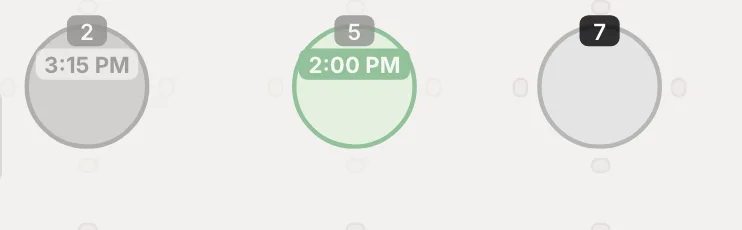
2Add a reservation
AWith a table: tap a later time, then a free table.
BNo table yet? Tap a later time, then Add without table.
Auto-assign? Tap Add without table. A free table is picked for you.
Then confirm or enter the party size and the guest, and tap Create reservation.
3Add a walk-in
ATap the current time (the red dot), then a free table.
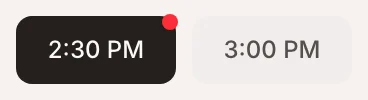
BOr tap a free table, then in the bar that opens.

No table free? Tap Add to waitlist.
4Seat, then finish
- They arrive: tap on their card.
- They leave: tap .


5Move to another table
ATap the card in the list.

BOr tap its table.
In the bar, tap Move. Tap the new table, then Update.

Already seated? Open the reservation to change its table.
Change or cancel: tap the card twice to open the reservation.
What's that colour? See the dashboard key.
All the help: trudystable.com/help, or Need help? at the top of the dashboard.