Dashboard key
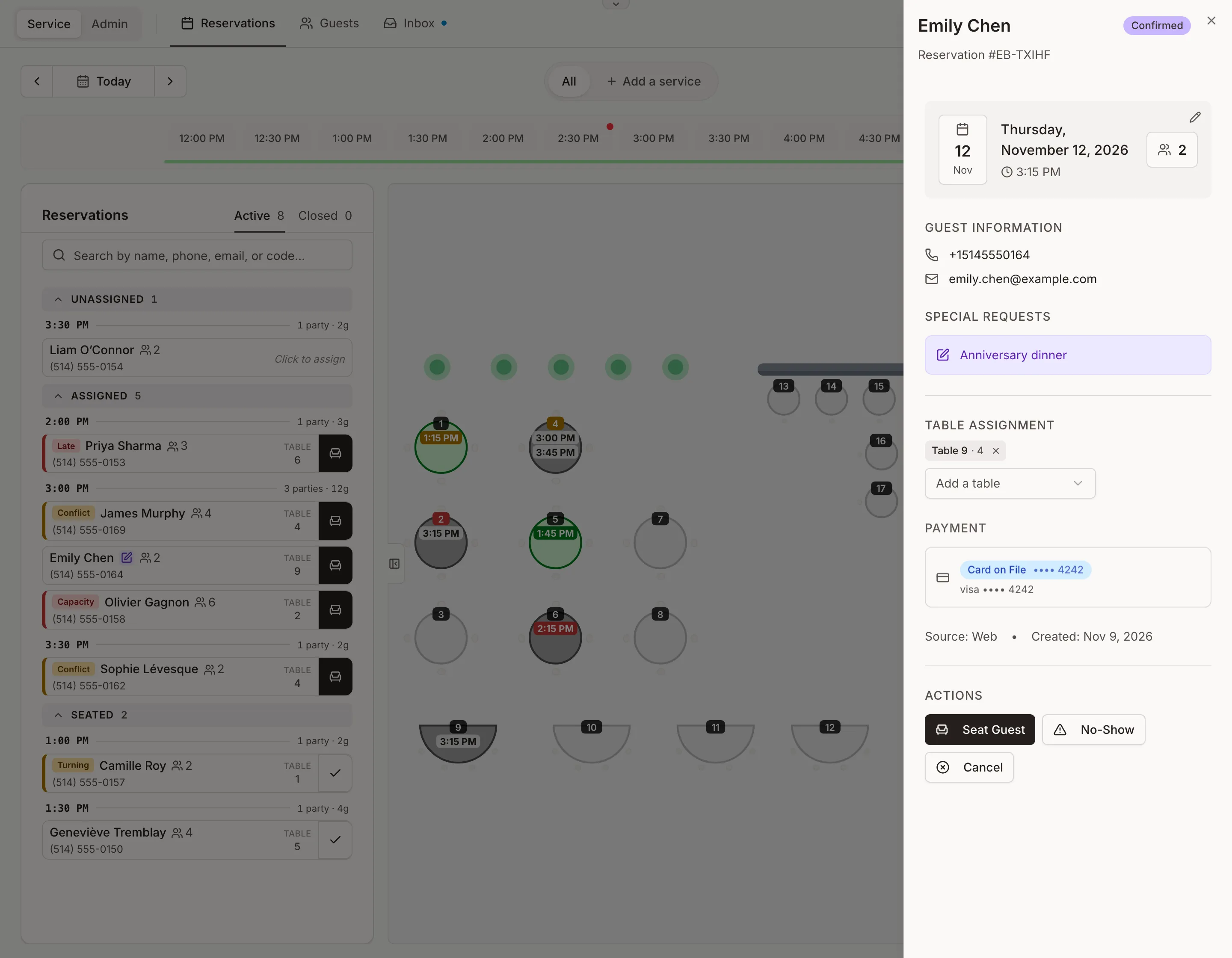
The Service view at a glance
The Service view has four areas. Each one has its own section below, with every button, badge and colour you will see there.
Top bar
 12345678
- 1
Service / Admin. Service runs the day. Admin holds your settings, behind your PIN if you set one.
- 2
Reservations, Guests, Inbox. Today's reservations, your guest list, and the online bookings and cancellations as they come in. A dot on Inbox means something new.
- 3
Need help? Opens these help articles, or texts us.
- 4
Date. The arrows change the day. Tap the date for a calendar.
- 5
Services. All shows the whole day. With services set up, pick your custom service configuration here.
- 6
Floor / List. The floor plan beside the reservations, or the day as one list.
- 7
Time bar. Tap a time to see which tables are free then; the rest fade. Then tap a free table: 30 minutes or more ahead starts a reservation, the current time starts a walk-in. The red dot is the time now.
- 8
How full. The line under the times shows how full each time is. Point at a time (tap on a tablet) for the exact percentage.
Colours of the line
- Under 75% full
- 75 to 99% full
- Full, or over
Reservations
123456789- 1
Active / Closed. Still to come or seated, versus completed, cancelled and no-shows.
- 2
Search. Name, phone, email or reservation code.
- 3
Unassigned. No table yet. Tap the reservation, then a table on the floor.
- 4
Assigned. Has a table, not seated yet. Grouped by time.
- 5
A reservation. Tap once to pick it for a table move, twice to open it.
- 6
Special request. The guest wrote something when booking. Open the reservation to read it.
- 7
Seat. Seats the party.
- 8
Seated. At the table now.
- 9
Complete. The party has left: the reservation is done.
Colours on a reservation
- LateMore than 15 minutes past its time, not seated
- CapacityParty bigger than its table
- TurningSeated, 15 minutes or less left, or past its time
- ConflictOverlaps another reservation on the same table
Buttons and tags
- Seat the party
- Mark it completed
- A later date: it can't be seated yet
- Click to assignNeeds a table before it can be seated
- The guest claimed a perk
- AwaitingCard asked for, not added yet
- WaitlistCame off the waitlist, now confirmed
- #1On the waitlist: place in line
- On the waitlist for later: joins the line at its time
In the Closed tab
- 35m beforeCancelled this long before its time. Red under 2 hours, amber under 24.
- Click for detailsOpen it to restore it or fix a mistake
Floor plan
123- 1
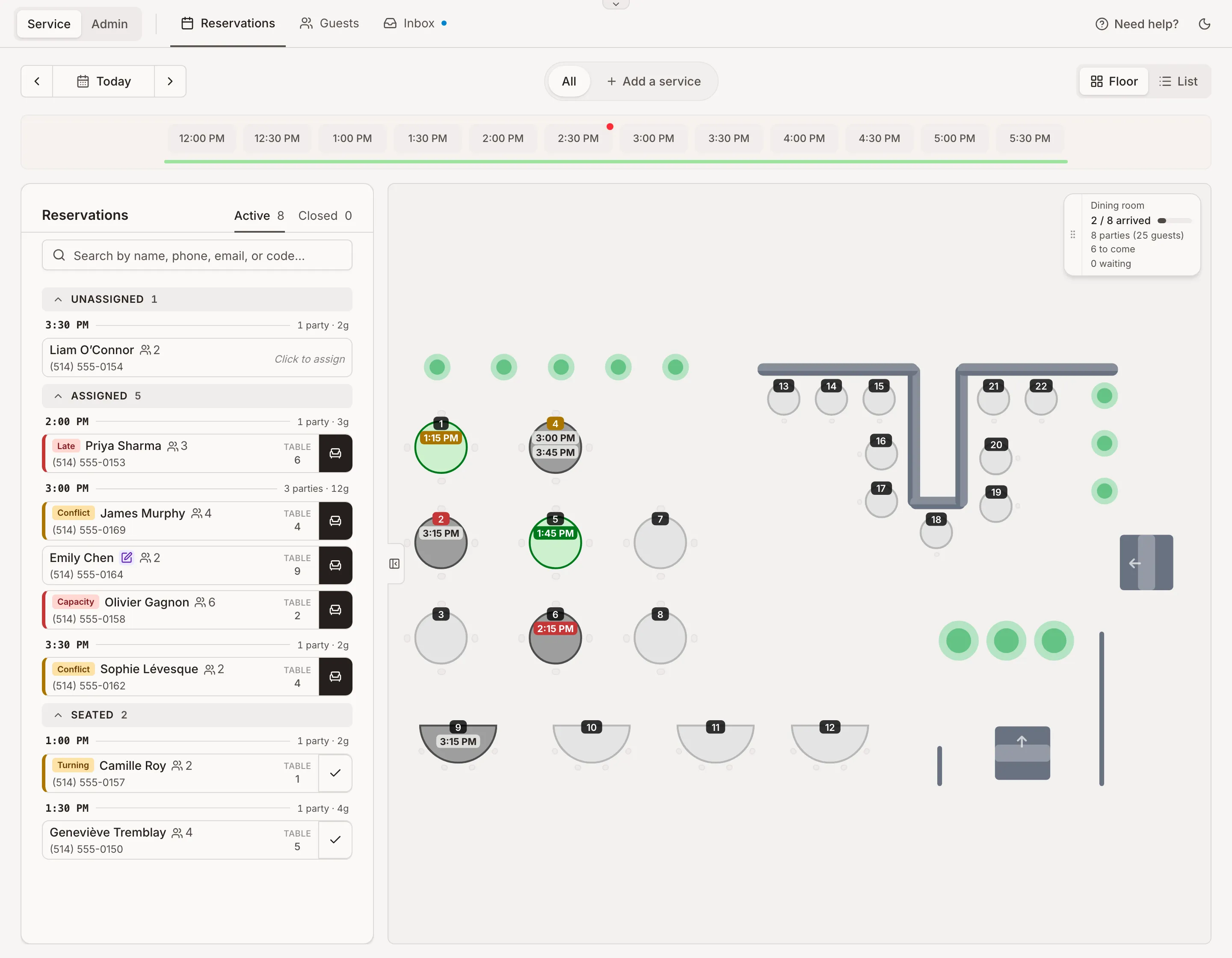
Arrivals. Who has arrived, how many are still to come, walk-ins, no-shows and who is waiting. Tap to open or close it, drag it by its grip.
- 2
A table. Tap it to see its reservations. Its colour says what is happening there.
- 3
Times on a table. Each reservation still to come or seated there, in order.
Colours on the floor
- 57:30 PMSeated: guests at the table
- 58:00 PMTo come: a reservation not seated yet
- 5Free: nothing still to come
- 57:00 PMLate: more than 15 minutes past its time
- 56:15 PMTurning: 15 minutes or less left, or past its time
- 58:00 PMCapacity: the party is bigger than the table
- 58:00 PM8:45 PMConflict: two reservations overlap, counting the reset time
Other table states
- 5Online only or staff only
- 58:00 PMBusy at the time you tapped on the time bar
- 56:00 PM+2More reservations than fit on the table
Reservation panel
Opens when you tap a reservation twice (once in the List view).
123456- 1
Date, time, party. Tap the pencil to change them. You choose whether the guest gets an email.
- 2
Special request. What the guest wrote when booking.
- 3
Table. Remove a table with its x, or add one. A red or amber note here explains a Capacity or Conflict.
- 4
Payment. The card on file and what happened to it. Cards are only asked for when Stripe is connected and no-show protection is on (Admin, Widget). A reservation with no card has no Payment section.
- 5
Source. Where the reservation came from, and when it was made.
- 6
Actions. What you can do next. The buttons change with the status.
Status
- PendingBooked, waiting for you to confirm
- ConfirmedBooked, not here yet
- SeatedAt the table
- CompletedLeft, all done
- CancelledCancelled
- No ShowNever came
- WaitlistWaiting for a table
Payment
- Awaiting CardCard asked for, not added yet
- Card on File•••• 4242Saved. Nothing is charged.
- ChargedNo-show fee charged
- ClearedCard removed, never charged
Actions by status
- ConfirmPending: confirm it
- Seat GuestNo-ShowCancelConfirmed. No-Show appears once the service has started.
- Assign tableNo table yet: add one under Table assignment first
- CompleteSeated
- Restore to ConfirmedMark CompletedCompleted, cancelled or no-show: fix a mistake